How to Link Discord to Minecraft on BD ZONE
How to Link Discord to Minecraft on BD ZONE
Introduction
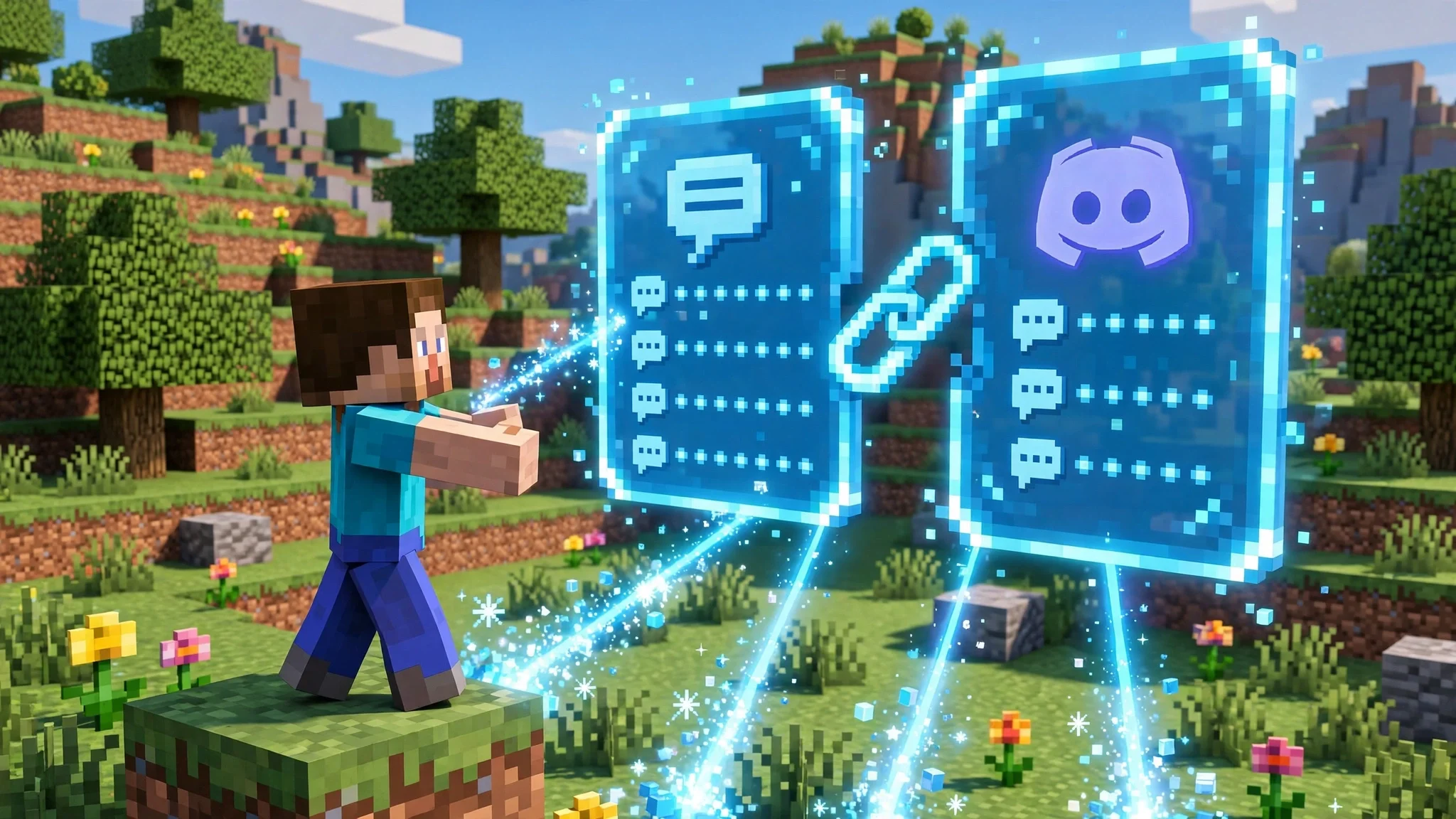
Learning how to link Discord to Minecraft on BD ZONE takes less than a minute, and it connects your game account with your Discord account. Once your accounts are linked, your in game chat and your Discord chat stay in sync, so you can talk with other BD ZONE players whether you are inside Minecraft or on Discord.
Linking is quick, free, and it uses a simple 4 digit code. You type one command in game, copy the code, and paste it in the ✅・link-account channel on our Discord server. This guide walks you through every step, shows you what to do if the code does not work, and explains how to unlink later if you ever need to.
What Happens When You Link Discord to Minecraft
When you learn how to link Discord to Minecraft, you are connecting two accounts that belong to you: your Minecraft account and your Discord account. After the link is complete, BD ZONE knows both accounts belong to the same player.
That connection keeps chat in sync between the game and Discord. Messages you send in game can be seen on Discord, and messages sent from Discord can be seen in game. It is the easiest way to stay part of the conversation even when you are away from your computer, and it helps staff and other players recognise you on both sides.
Linking is optional, and you can keep playing on BD ZONE without it. But if you want the full community experience, linking is worth the one minute it takes.
Before You Start: Join the BD ZONE Discord Server
You need to be a member of the BD ZONE Discord server before you can link your accounts, because the code has to be pasted in a channel there.
If you have not joined yet, join the BD ZONE Discord server first, then come back to this guide. Make sure you are logged in to the same Discord account you want to link, because the account you paste the code with is the account that gets linked to your Minecraft account.
How to Link Discord to Minecraft on BD ZONE
Follow these five steps to link your accounts. The whole process takes about a minute.
Step 1: Type the Link Command In Game
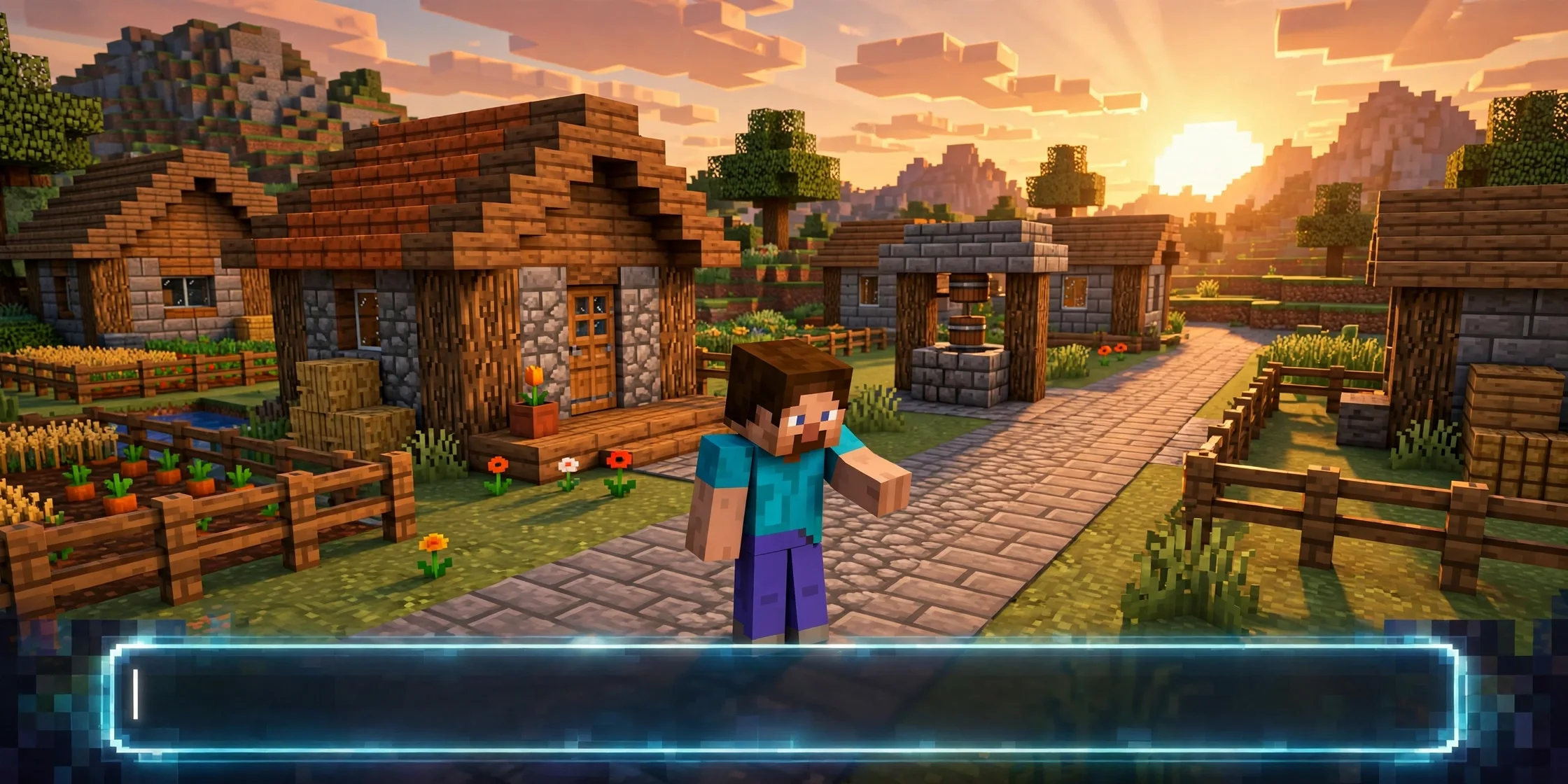
Join the BD ZONE server in Minecraft and open the chat. Type /discord link and press Enter.
The game will show you a 4 digit code on your screen. The code is made just for you, and it is different every time you run the command.
Step 2: Copy Your 4 Digit Code
Look at the code the game shows you and copy it exactly. It is a short number, for example 4206.
Double check every digit before you move on. A single wrong digit means the link will not work, and you will need to start again with a fresh code.
Step 3: Go to the Link Channel on Discord
Switch over to Discord and open the BD ZONE server. Find the channel where players paste their link codes and open it here: the ✅・link-account channel.
This channel is only for link codes, so please do not chat there. Paste your code and nothing else, so staff and the system can read it clearly.
Step 4: Paste the Code in the Channel
Paste your 4 digit code into the ✅・link-account channel and send the message.
Once the code is accepted, your Discord account and your Minecraft account are linked. You will see a confirmation, and from that point your chat stays in sync between the game and Discord.
Step 5: Start Chatting Across Game and Discord
That is all there is to it. You now know how to link Discord to Minecraft on BD ZONE, and your accounts will stay linked until you choose to unlink them.
Try sending a message in game and watch it appear on Discord, or send a message from Discord and see it in game. If it works, your link is active.
What to Do If Your Code Does Not Work
Sometimes a code fails on the first try. Here is how to fix the most common problems.
The code was typed wrong. Codes are 4 digits long, and one wrong digit breaks the link. Type /discord link again in game to get a fresh code, copy it carefully, and paste the new code.
You pasted the code in the wrong channel. The code only works in the ✅・link-account channel. If you pasted it somewhere else, run /discord link again for a new code and paste it in the ✅・link-account channel.
You are logged in to the wrong Discord account. The code links the Discord account you paste it with. If you use Discord on more than one account, switch to the right one first, then get a fresh code and paste it again.
You already linked a different account. One Minecraft account links to one Discord account. If you linked the wrong Discord account earlier, unlink it first using the steps below, then link the correct one.
Never share your link code in public chat, in a DM with a stranger, or in any channel except the ✅・link-account channel. The code connects your accounts, so treat it like a password and only paste it where it belongs.
How to Unlink Your Discord Account
If you ever need to unlink your accounts, BD ZONE handles it through a support ticket. The steps are simple.
- Go to the support channel here: support tickets.
- Create a ticket from that channel.
- Tell the staff a valid reason for unlinking.
A staff member will review your ticket and unlink your accounts. Once it is done, you can link a different Discord account by following the steps in this guide again.
Do not try to unlink by running the link command again or by pasting codes in other channels. The ticket route is the only way to unlink, and it keeps your account safe.
Frequently Asked Questions
Do I have to link Discord to play on BD ZONE?
No. Linking is optional, and you can play on BD ZONE without a linked Discord account. Linking only adds the chat sync between the game and Discord, and it helps the community recognise you on both sides.
Is linking my Discord account safe?
Yes. The link only connects your Minecraft account with your Discord account on BD ZONE. Your 4 digit code is single use and made just for you. Keep the code private, paste it only in the ✅・link-account channel, and your accounts stay safe.
How long does the 4 digit code last?
Use your code right after you get it. If you wait too long or the code fails, just type /discord link in game again and a fresh code will appear. There is no limit on how many times you can request a new code.
Can I link a different Discord account later?
Yes. First unlink your current Discord account through a support ticket, as explained above. Once staff confirm the unlink, follow the steps in this guide to link your new Discord account.
What should I do if I linked the wrong Discord account?
Open a support ticket, explain that you linked the wrong account, and ask staff to unlink it. Then run /discord link in game again and paste the fresh code with the correct Discord account.
Start Chatting Everywhere
Now you know how to link Discord to Minecraft on BD ZONE, and it only takes a minute. Type /discord link in game, copy your 4 digit code, and paste it in the ✅・link-account channel. Once your accounts are linked, you can chat with the BD ZONE community from the game or from Discord, wherever you happen to be.
Join the server at PLAY.BDZONEMC.COM, link your Discord account today, and we will see you in chat.